light TESLA MODEL S 2018 Owner's Guide
[x] Cancel search | Manufacturer: TESLA, Model Year: 2018, Model line: MODEL S, Model: TESLA MODEL S 2018Pages: 195, PDF Size: 5.51 MB
Page 107 of 195

7.Displays
Manually control the brightness and the Day (light background) or Night (dark background)
setting of the touchscreen and instrument panel. When set to Auto, the brightness changes
automatically between day and night brightness based on ambient lighting conditions. When
Auto-adjust is checked, the displays are further adjusted based on both the surroundings and
by learning your preferences (i.e. it remembers the type of manual adjustments you make).
To disable the touchscreen momentarily for cleaning purposes, touch Clean Mode.
You can also put Model S into an energy saving mode so it consumes less energy when not in
use (see Getting Maximum Range on page 70).
Note: The Displays settings can also be accessed from the Settings screen.
8. E-Brake & Power
Off
You can manually:
Page 111 of 195

7.Displays
Manually control the brightness and the DAY (light background) or NIGHT (dark background)
setting of the touchscreen and instrument panel. When set to AUTO, the brightness changes
automatically between day and night brightness based on ambient lighting conditions. When
Auto-adjust is checked, the displays are further adjusted based on both the surroundings and
by learning your preferences (i.e. it remembers the type of manual adjustments you make).
To disable the touchscreen momentarily for cleaning purposes, touch CLEAN MODE.
You can also put Model S into an energy saving mode so it consumes less energy when not in
use (see Getting Maximum Range on page 70).
Note: The Displays settings can also be accessed from the Controls screen.
8. HomeLink (if equipped)
If the HomeLink feature is available in your region, use it to control RF-enabled garage doors, lights, or security systems (see HomeLink Universal Transceiver on page 133).
9. Driver Assistance
If Model S is equipped with Driver Assistance components, you can control the features that provide a safer and more convenient driving experience (see About Driver Assistance on page
73).
10. Service & Reset
Turn various service-related features on and
off:
Page 112 of 195
Overview of Climate Controls
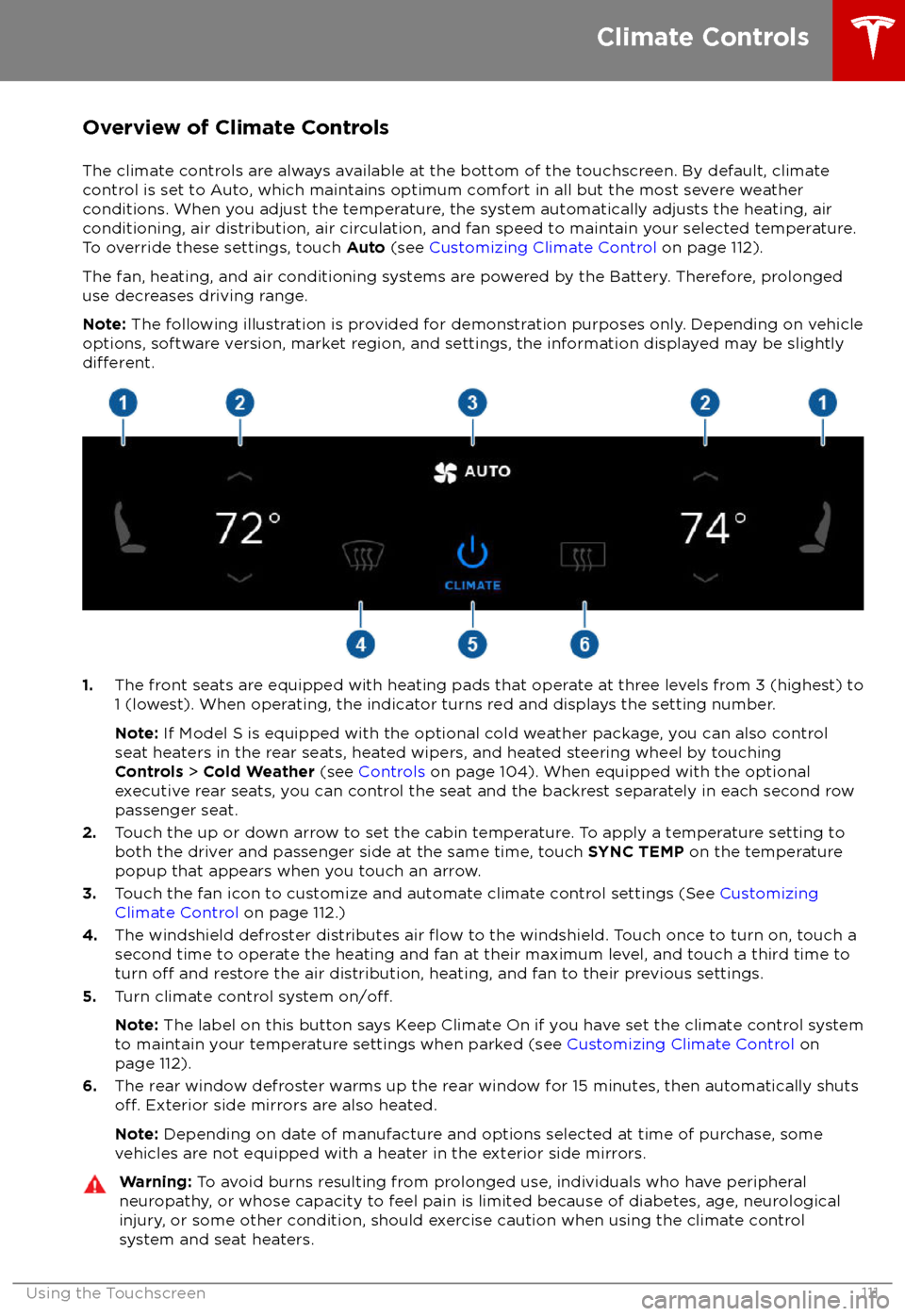
The climate controls are always available at the bottom of the touchscreen. By default, climate control is set to Auto, which maintains optimum comfort in all but the most severe weather conditions. When you adjust the temperature, the system automatically adjusts the heating, air
conditioning, air distribution, air circulation, and fan speed to maintain your selected temperature. To override these settings, touch Auto (see Customizing Climate Control on page 112).
The fan, heating, and air conditioning systems are powered by the Battery. Therefore, prolonged
use decreases driving range.
Note: The following illustration is provided for demonstration purposes only. Depending on vehicle
options, software version, market region, and settings, the information displayed may be slightly
different.
1. The front seats are equipped with heating pads that operate at three levels from 3 (highest) to
1 (lowest). When operating, the indicator turns red and displays the setting number.
Note: If Model S is equipped with the optional cold weather package, you can also control
seat heaters in the rear seats, heated wipers, and heated steering wheel by touching Controls > Cold Weather (see Controls on page 104). When equipped with the optional
executive rear seats, you can control the seat and the backrest separately in each second row
passenger seat.
2. Touch the up or down arrow to set the cabin temperature. To apply a temperature setting to
both the driver and passenger side at the same time, touch SYNC TEMP on the temperature
popup that appears when you touch an arrow.
3. Touch the fan icon to customize and automate climate control settings (See Customizing
Climate Control on page 112.)
4. The windshield defroster distributes air
flow to the windshield. Touch once to turn on, touch a
second time to operate the heating and fan at their maximum level, and touch a third time to
turn
off and restore the air distribution, heating, and fan to their previous settings.
5. Turn climate control system on/off.
Note: The label on this button says Keep Climate On if you have set the climate control system
to maintain your temperature settings when parked (see Customizing Climate Control on
page 112).
6. The rear window defroster warms up the rear window for 15 minutes, then automatically shuts
off. Exterior side mirrors are also heated.
Note: Depending on date of manufacture and options selected at time of purchase, some
vehicles are not equipped with a heater in the exterior side mirrors.
Warning: To avoid burns resulting from prolonged use, individuals who have peripheral
neuropathy, or whose capacity to feel pain is limited because of diabetes, age, neurological injury, or some other condition, should exercise caution when using the climate control
system and seat heaters.
Climate Controls
Using the Touchscreen111
Page 133 of 195

About the Security SystemIf Model S does not detect a key nearby and a
locked door or trunk is opened, an alarm sounds and the headlights and turn signals
flash. To deactivate the alarm, press any
button on the key.
To manually enable or disable the alarm
system, touch Controls > Settings > Safety &
Security > Alarm . When set to ON, Model S
activates its alarm one minute after you exit,
the doors lock, and a recognized key is no
longer detected.
If your Model S is equipped with the optional security package, it includes a battery-backed
siren that sounds in situations where a locked door or trunk is opened and Model S does notdetect a key nearby. If the Tilt/Intrusion
setting is on, the siren also sounds if Model S
detects motion inside the cabin or if the
vehicle is moved or tilted (for example, with a
tow truck or jack). To temporarily turn the Tilt/
Intrusion detection system
off, touch
Controls > Settings > Safety & Security > Tilt/
Intrusion > OFF . The Tilt/Intrusion setting is
enabled every time Model S is unlocked.
Note: If you plan to leave something that
moves, such as a dog, inside your locked
Model S, remember to turn
off Tilt/Intrusion .
Motion detected inside Model S activates the
siren.
Note: The Alarm must be on to enable Tilt/
Intrusion .
Security Settings
132Model S Owner
Page 135 of 195

Troubleshooting HomeLinkWhen programming a HomeLink device, the
touchscreen walks you through a two-part
programming process:
1. Model S records the signal from the
remote. The touchscreen instructs you to
stand in front of the vehicle, point the
remote at the front bumper and press and
hold the button until the headlights
flash.When the headlights flash, Model S has
learned the remote and you can touch
Continue on the touchscreen. If the
headlights do not
flash, refer to the
following guidelines.
2. The device
Page 143 of 195
Opening the Charge Port
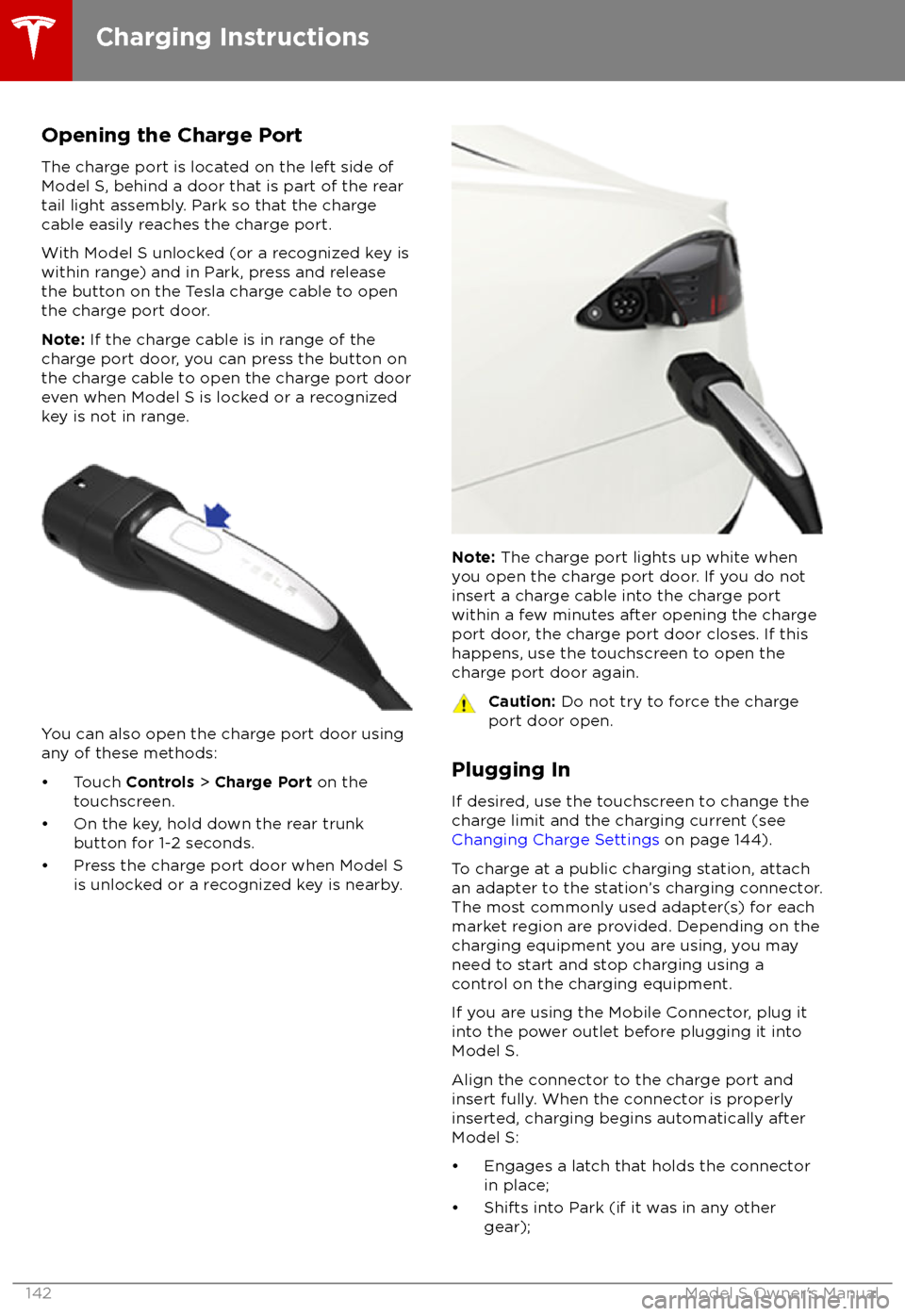
The charge port is located on the left side of
Model S, behind a door that is part of the rear
tail light assembly. Park so that the charge
cable easily reaches the charge port.
With Model S unlocked (or a recognized key is
within range) and in Park, press and release
the button on the Tesla charge cable to open the charge port door.
Note: If the charge cable is in range of the
charge port door, you can press the button on the charge cable to open the charge port door
even when Model S is locked or a recognized
key is not in range.
You can also open the charge port door using
any of these methods:
Page 145 of 195

Changing Charge Settings
The charge settings screen displays on the
touchscreen whenever the charge port door is
open.
To display charge settings at any time, touch
the Battery icon on the top of the
touchscreen, or touch Controls > Charging
(located in the upper right portion of the
Controls screen).
Note: The following illustration is provided for
demonstration purposes only and may vary
slightly depending on software version and
market region.
Note: If charging at a Tesla Supercharger, and
paid supercharging is potentially in effect, the
charging screen also displays information
about your previous or current Supercharger
session (see Supercharger Usage Fees and
Idle Fees on page 146).
1. Charge status messages (such as
Charging Scheduled, Charging In
Progress) display here.
2. To adjust the charge limit, touch Set
Charge Limit , and drag the arrow to
change the charge limit setting. The
setting you choose applies to immediate and scheduled charging sessions.
3.Location-specific schedule. With Model S
in Park, set a specific time to begin
charging at the current location. If, at the
scheduled time, Model S is not plugged in
at the location, charging starts as soon as
you plug it in provided you plug it in
within six hours of the scheduled time. If
plugged in after six hours, charging does
not start until the scheduled time on the next day. To override this setting, touchStart Charging or Stop Charging (see
item 4). When you set a scheduled
charging time, Model S displays the set
time on the instrument panel and
touchscreen.
4. Touch to open the charge port door or to
start (or stop) charging.
5. Charging rate per hour, estimated increase
in driving distance (or energy) achieved
so far in this charging session, current
supplied/available from the connected
power supply, and voltage supplied by the
charge cable.
6. The current automatically sets to the
maximum current available from the
attached charge cable, unless it was
previously reduced to a lower level. If
needed, touch the up/down arrows to
change the current (for example, you may
want to reduce the current if you are
concerned about overloading a domestic
wiring circuit shared by other equipment).
It is not possible to set the charging
current to a level that exceeds the
maximum available from the attached charge cable. When you change the
current, Model S remembers the location.
If you charge at the same location, you do
not need to change it again.
Note: For 3-phase charging, the available
current represents the current per phase
(up to 32 amps). During charging, the
right status
flag displays the 3-phase
symbol in front of the displayed current.
Note: If Model S automatically reduced
the current at a charging location because
of
Page 146 of 195

Charging Status
The following illustration is provided for demonstration purposes only and may vary slightly
depending on the software version and market region.
1. Charging status information. For example, when Model S is charging, it displays the time
remaining until fully charged at the currently selected charge level. When a charging session is
scheduled, it displays when charging starts.
2. Total estimated driving distance (or energy) available. To choose between displaying distance
or energy percentage, touch Controls > Settings > Language & Units > Energy & Charging .
Note: A portion of the battery image may appear blue. This indicates that a small portion of
the energy stored in the battery is not available because the battery is cold. This is normal and no reason for concern. When the battery warms up, the blue portion no longer displays.
3. Charging rate per hour.
4. Estimated increase in driving distance (or energy) achieved so far in this charging session.
5. Current supplied/available from the connected power supply (see Changing Charge Settings
on page 144).
If connected to a 3-phase power supply, the available current represents the
current per phase and the 3-phase symbol displays.
6. Voltage supplied by the charge cable.
Note: If Model S is charging and detects unexpected
Page 151 of 195

Replacing Tires and Wheels
Tires degrade over time due to the
effects of
ultraviolet light, extreme temperatures, high
loads, and environmental conditions. It is
recommended that tires are replaced every six
years, or sooner if required.
Wheel and tires are matched to suit thehandling characteristics of the vehicle.
Replacement tires must comply with the
original
specification. If tires other than thosespecified are used, ensure that the load and
speed ratings marked on the tire (see Understanding Tire Markings on page 172)
equal or exceed those of the original
specification.
Ideally, you should replace all four tires at the same time. If this is not possible, replace the
tires in pairs, placing the new tires on the rear.
Always balance the wheel after replacing a
tire.
If you replace a wheel, the TPMS (Tire Pressure
Monitoring System) sensors need to be reset to ensure they provide accurate warnings
when tires are under- or
over-inflated (see
Resetting the TPMS Sensors on page 152).
For the
specification of the original wheels
and tires installed on Model S, see Wheels and
Tires on page 171.
Warning: For your safety, use only tires
and wheels that match the original
specification. Tires that do not match the
original specification can affect the
operation of the TPMS.
Warning: Never exceed the speed rating
of your vehicle
Page 154 of 195

TPMS malfunctions can occur for a variety of
reasons, including installing replacement or
alternate tires or wheels that prevent the
TPMS from functioning properly. Always check
the TPMS malfunction indicator light after replacing one or more tires or wheels on yourvehicle to ensure that the replacement tires or
wheels allow the TPMS to continue to function
properly.
Note: If a tire has been replaced or repaired
using a
different tire sealant than the one
available from Tesla, and a low tire pressure is
detected, it is possible that the tire sensor has
been damaged. Contact Tesla to have the fault repaired as soon as possible.
Tire Care and Maintenance
Maintenance153